

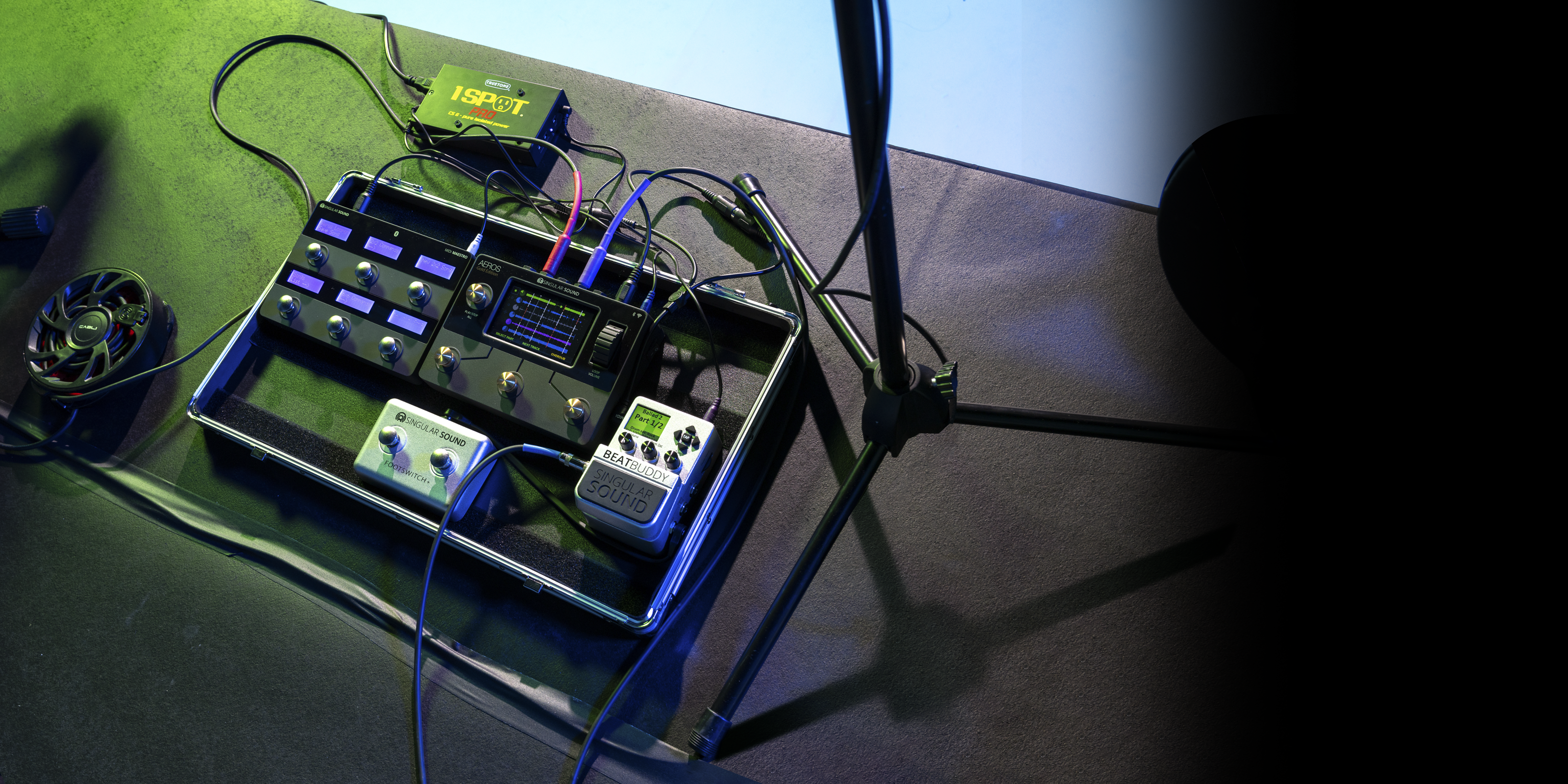
Which products are you setting up today?
Download Latest Firmware
Select your product to download the latest firmware and watch the installation guide.
BeatBuddy Firmware 4.1.7
Download FirmwareFollow these steps to update your BeatBuddy:
- Download the latest firmware .zip from the website or the forum
- Unzip and open enclosing folder, copy and paste/ drag and drop all of the files into the BeatBuddy’s formatted SD card
- If your computer says that the files already exist, replace all of them, do not merge
- Connect your BeatBuddy to a power source
- Once powered on, insert the SD card, if you placed the update files correctly on the SD card the BeatBuddy screen will read “Updating Firmware” this will take a few moments
- DO NOT unplug the BeatBuddy while it is updating the Firmware, this will BRICK YOUR UNIT, if you encounter any issues while updating please reach out to support@singularsound.com at your earliest convenience
- Confirm the update in the settings in About BeatBuddy
BeatBuddy 2 Firmware 1.0.1
Download FirmwareFollow these steps to update your BeatBuddy 2:
- Power OFF your BeatBuddy 2 or disconnect it from power
- Download the latest firmware .zip from the website or the forum
- Unzip and open the enclosing folder
- Copy and paste / drag and drop all of the files inside the folder into the BeatBuddy 2’s formatted SD card
- If your computer says that the files already exist, replace all of them, do not merge
- Insert the SD card
- Connect your BeatBuddy 2 to a power source and power on
- Once powered on, if you placed the update files correctly on the SD card the BeatBuddy 2 screen will read “Updating Firmware” this will take a few moments
- DO NOT unplug the BeatBuddy 2 nor remove the SD card while it is updating the Firmware, this will BRICK YOUR UNIT, if you encounter any issues while updating please reach out to support@singularsound.com at your earliest convenience
- Confirm the update in the settings in ‘About BeatBuddy’ menu
Aeros Firmware 5.4.5
Download FirmwareCheck out this easy video on how to do the manual SD update.
Simply download the aeros firmware .bin file and edit the name (usually something like “aeros-5.0.0.bin”) to be ”aeros.bin” before adding it to your SD card.
Then, you have two choices:
- Power off your unit, insert the SD card, and power the unit back on, the Aeros will update automatically before start-up. WARNING DO NOT insert the SD card and then turn off the Aeros, as this corrupts the update file.
- If the manual update option 1 is not working, this may be a solution. If neither option works, please contact support@singularsound.com.
- (If on 3.0.0 or later) Insert the SD card, go to the downloads menu and hit the update button once it lights up. The Aeros will ask if you want to update, select “Yes”. If the Aeros is ON while inserting the SD card, a pop-up to update will appear if you’re on the main menu or updates screen. Select “yes” to update.
MIDI Maestro Firmware 1.1.9
- Update the MIDI Maestro App to the latest version in the App Store or Google Play Store
- Turn on your MIDI Maestro and enable Pairing Mode (hold the pairing button on the back of the unit for ~1 second). A blue LED will flash once the pairing mode is turned on.
- Go to the Hamburger menu in the app (top left) and select the Update Firmware option. Once the app has established connection you will see the MIDI Maestro blue Pairing LED stop flashing and turn solid blue.
- Allow the process to finish, the app will show the progress. Do not close the app, put your phone to sleep, turn off the MIDI Maestro, or change to another app while this is happening or you will need to restart the process.
- Once the firmware update is complete, you must rewrite the default modes to the device, the MIDI Maestro may turn off the BLE Pairing Mode automatically, turn the Pairing Mode back on again manually. Your MIDI Maestro screens may read ‘EEPROM INVALID’, disregard this.
- In the app, reopen the hamburger menu and select the Update Default Modes option. Allow the process to finish, the app will show the progress. Do not close the app, put your phone to sleep, turn off the MIDI Maestro, or change to another app while this is happening or you will need to restart the process.
- Once the update is finished, power the unit off and back on again to see the update take place. You can verify the current loaded firmware on the MIDI Maestro on the bottom left screen of the main menu.
- Optional: Load in the custom mode currently open on the app by pressing the Upload to MIDI Maestro button in the Home screen.
Installation Guide
Installation Guide
Installation Guide
Installation Guide